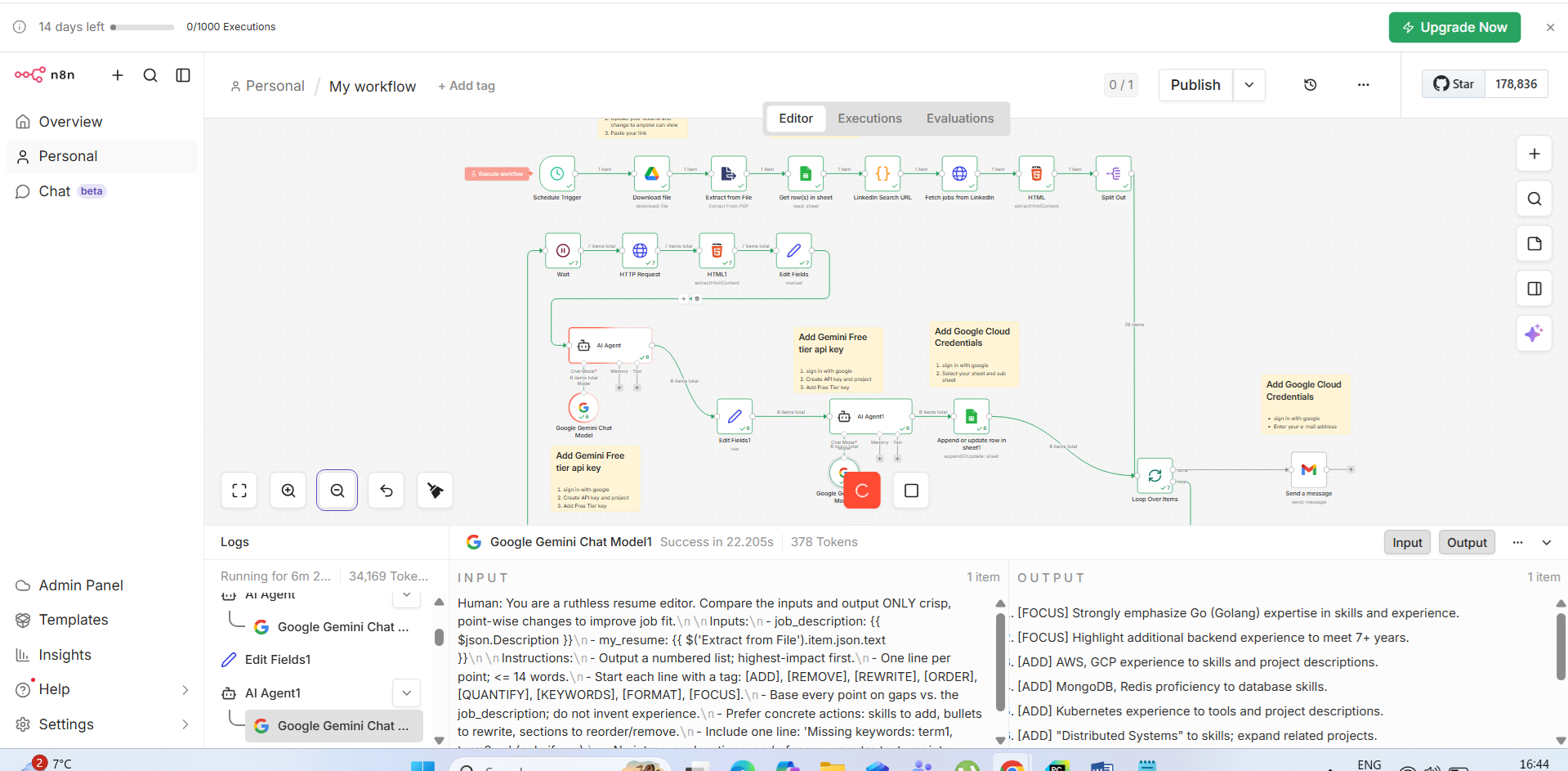
Imagine waking up every morning to a curated list of jobs perfectly matched to your skills, complete with AI-generated cover letters and resume tips — all delivered to your inbox automatically. That's exactly what this n8n workflow does.
In this guide, I'll walk you through building a complete job search automation system using n8n, OpenAI's GPT-4, and free job scraping APIs. By the end, you'll have a workflow that runs every morning, finds matching jobs, scores them with AI, generates personalized cover letters, and sends you an email digest. No more spending hours refreshing job boards — let the machines do the hunting while you focus on preparing for interviews.
Whether you're actively job-hunting or passively keeping an eye on the market, this workflow gives you a significant edge. Instead of manually sifting through hundreds of irrelevant postings, you'll receive only the opportunities that actually match your profile, pre-loaded with everything you need to apply immediately.
⚡ What You'll Build
- ✅ Automated job scraping from LinkedIn, Indeed, and more
- ✅ AI-powered job fit scoring (1-10 scale with explanations)
- ✅ Personalized cover letter generation for each job
- ✅ Resume tailoring suggestions per job
- ✅ Daily email digest with best matches
- ✅ Google Sheets tracking of all applications
⬇️ Download the Free Workflow Template
Skip the manual build — import the pre-built JSON directly into n8n in 60 seconds. Includes all 12 nodes, sample prompts, and config comments.
🆔 Interactive Workflow Demo
Click each step to see exactly what it does, what data it receives, and what it outputs. No n8n account needed to explore.
Before we start, make sure you have the following accounts and tools ready. Most are free or have generous free tiers — this workflow is designed to be as low-cost as possible.
- n8n account: Sign up at n8n.io (free cloud tier available) or self-host on a $5/month VPS for full control
- OpenAI API key: For GPT-4 scoring and generation. Grab yours at platform.openai.com (approximately $5/month for daily use)
- Gmail account: For sending daily digest emails via the Gmail node
- Google Sheets: For tracking applications and history (free with any Google account)
- RapidAPI account: Free tier gives you enough calls for daily job scraping at rapidapi.com
Estimated setup time: 45-60 minutes. Monthly running cost: $5-10 (OpenAI API fees only — everything else is free).
How the Workflow Works
The workflow runs on a schedule (every morning at 7 AM) and executes 12 nodes in sequence. Each node handles a specific task, passing its output to the next node. Here's the full pipeline at a glance:
- Schedule Trigger → starts the workflow automatically at 7 AM daily
- Resume Download → fetches your latest resume PDF from Google Drive
- PDF Text Extract → converts PDF binary to searchable plain text
- Search Filters → loads your job preferences from a central config object
- LinkedIn URL Builder → constructs search URLs with your encoded filters
- Job Scraper → hits the job listing API and retrieves raw results (up to 25 per run)
- HTML Parser → cleans and normalizes the scraped job data
- Detail Fetcher → gets the full job description for each listing
- AI Job Scorer → GPT-4 scores each job 1-10 against your resume with reasoning
- Cover Letter Generator → creates a personalized cover letter for each qualifying job
- Resume Tips → suggests specific resume edits and keywords per job
- Email Notification → sends a formatted HTML digest with top matches to your inbox
n8n processes each job through steps 8–11 in a loop automatically. When you disable "Execute Once" on loop nodes, n8n iterates over each item in the array — no manual coding required.
Step-by-Step Workflow Setup
Let's build this workflow from scratch. Open your n8n workspace and create a new workflow. We'll add each node in order, test it, and wire them together at the end.
Step 1: Schedule Trigger
⏰ Schedule Trigger Node
This node kicks off the entire workflow automatically every morning. Configure it to run at a time when you want your daily digest ready — ideally before you start your day.
In n8n, click the + button and search for Schedule Trigger. Configure it as follows:
- Trigger at: Every Day
- Time: 07:00 AM (your local timezone)
- Timezone: Your local timezone (e.g., America/New_York, Europe/London)
This node has no inputs — it simply fires at the scheduled time and passes a timestamp object to the next node. During setup, click "Test workflow" (the play button) to run it manually at any time without waiting for the schedule. This is essential for testing each step as you build.
Pro tip: If you're in an active job search, consider running the workflow twice daily — once at 7 AM and again at 2 PM to catch afternoon postings. Just duplicate the schedule trigger and add a second one with the afternoon time.
Step 2: Resume Download (Google Drive)
📥 Google Drive Node — Download Resume
Fetches your latest resume PDF from Google Drive so it can be analyzed by the AI scorer in later steps. By pulling from Drive, any updates you make to your resume are automatically reflected in the next run.
Add a Google Drive node and configure it:
- Operation: Download File
- File ID: The ID from your Google Drive resume URL
- Credentials: Connect your Google account (OAuth2) — n8n walks you through this
To find your file ID: open your resume in Google Drive, look at the URL: drive.google.com/file/d/FILE_ID_HERE/view — copy the string between /d/ and /view.
Pro tip: Keep a single "master resume" in Google Drive that you update whenever you gain new skills or projects. The workflow always pulls the latest version automatically, so your job matching stays current without any extra effort.
Step 3: PDF Text Extraction
📄 Extract from File Node — PDF to Text
Converts the binary PDF data from the previous step into plain text that can be sent to OpenAI for analysis. This is a critical bridge between your resume file and the AI scoring engine.
Add an Extract from File node (search for "Extract" in the node panel):
- Operation: Extract Text from PDF
- Binary Property:
data(this is the default output property name from the Google Drive node)
The output will be a JSON object with a text field containing all parsed text from your resume — your name, skills, experience, education, and contact info. Test this node to verify the extraction looks correct before continuing. If formatting looks garbled, try saving your resume as a text-based PDF rather than a scanned image PDF.
Step 4: Job Search Filter Configuration
⚙️ Code Node — Search Configuration
Defines your job search preferences as a structured config object. Having all settings in one place means you can tweak your search without hunting through multiple nodes.
Add a Code node. This acts as a central configuration panel you can easily update as your job search evolves:
// ============================================
// JOB SEARCH CONFIGURATION — Edit this section
// ============================================
const config = {
  keywords: "software engineer AI automation",
  location: "Remote",
  experience_level: "mid-level",
  job_type: "full-time",
  date_posted: "past-week",
  min_salary: 100000,
  excluded_companies: ["Company X", "Company Y"],
  min_score_threshold: 7  // Only show jobs scoring 7+ out of 10
};

return [{ json: config }];
Customize keywords, location, and min_score_threshold to match your target role. The threshold of 7 means only jobs where the AI rates you as a strong candidate will appear in your digest — raising it to 8 gives you fewer but higher-quality matches. Start at 6 while calibrating the scorer, then raise once you're happy with the results.
Step 5: LinkedIn Search URL Builder
🔗 Code Node — Build Search URL
Constructs the LinkedIn job search URL with all your filter parameters properly URL-encoded. This structured URL is what gets passed to the scraping API.
Add another Code node to build the API request URL from your config:
const config = $('Search Config').first().json;

const params = new URLSearchParams({
  keywords: config.keywords,
  location: config.location,
  f_E: '3',       // Mid-Senior level (1=Entry, 2=Associate, 3=Mid, 4=Senior, 5=Director)
  f_JT: 'F',      // Full-time (F=Full-time, P=Part-time, C=Contract, T=Temporary)
  f_TPR: 'r604800', // Past week (r86400=24h, r604800=week, r2592000=month)
  start: '0',
  count: '25'
});

const searchUrl = `https://www.linkedin.com/jobs/search/?${params.toString()}`;
return [{ json: { searchUrl, config } }];
The f_E, f_JT, and f_TPR parameters are LinkedIn's internal filter codes. Adjust f_E to match your seniority level and f_TPR to control how recent the postings are. Using r86400 (24 hours) for active job searches ensures you see the freshest listings before other candidates.
Step 6: Job Scraping API Call
🕷️ HTTP Request Node — Job Scraper
Calls a job scraping API via RapidAPI to get structured job listing data without manual scraping. This returns clean JSON rather than raw HTML, saving significant processing work.
Add an HTTP Request node with these settings:
- Method: GET
- URL:
https://linkedin-jobs-search.p.rapidapi.com/jobs - Header — X-RapidAPI-Key:
your-rapidapi-key - Header — X-RapidAPI-Host:
linkedin-jobs-search.p.rapidapi.com - Query Param — query:
={{ $json.config.keywords }} - Query Param — location:
={{ $json.config.location }} - Query Param — page:
1
The LinkedIn Jobs Search API on RapidAPI has a free tier of 100 calls/month — more than enough for daily runs. This returns structured JSON with job titles, companies, locations, URLs, and posting dates without any HTML parsing needed.
Alternative free APIs to consider: The JSearch API (also on RapidAPI), Adzuna's open API (1,000 calls/month free at developer.adzuna.com), or SerpAPI's Google Jobs endpoint. You can add multiple HTTP nodes in parallel and merge the results for broader coverage.
Step 7: HTML & Response Parsing
🔧 Code Node — Parse & Clean Results
Normalizes the API response into a consistent format and filters out jobs from companies you've excluded. This ensures the downstream AI nodes receive clean, structured data.
Add a Code node to process the raw API response:
const jobs = $input.all();
const config = $('Search Config').first().json;

const parsedJobs = jobs
  .filter(job => {
    // Filter out excluded companies
    const company = (job.json.company || '').toLowerCase();
    return !config.excluded_companies.some(
      exc => company.includes(exc.toLowerCase())
    );
  })
  .map(job => ({
    json: {
      id: job.json.job_id || Math.random().toString(36).slice(2),
      title: job.json.title || 'Unknown Title',
      company: job.json.company || 'Unknown Company',
      location: job.json.location || 'Remote',
      url: job.json.job_url || '',
      posted: job.json.posted_at || 'Recently',
      snippet: (job.json.description || '').slice(0, 500)
    }
  }));

// Deduplicate by job ID
const seen = new Set();
const uniqueJobs = parsedJobs.filter(j => {
  if (seen.has(j.json.id)) return false;
  seen.add(j.json.id);
  return true;
});

return uniqueJobs;
The deduplication step is important if you're pulling from multiple APIs simultaneously — the same job can appear on multiple platforms. This ensures each job is only scored and processed once, saving API costs.
Step 8: Fetch Full Job Descriptions
📋 HTTP Request Node — Fetch Job Details
Gets the complete job description for each listing so the AI can conduct a thorough, accurate fit analysis. Job snippets are often too short for reliable scoring.
Add another HTTP Request node configured for job detail fetching:
- Method: GET
- URL:
https://linkedin-jobs-search.p.rapidapi.com/job-details - Header — X-RapidAPI-Key:
your-rapidapi-key - Header — X-RapidAPI-Host:
linkedin-jobs-search.p.rapidapi.com - Query Param — id:
={{ $json.id }}
This node runs for each job in the array — n8n handles the iteration automatically when you leave "Execute Once" unchecked. The full job description gives the AI 3-5x more context for accurate scoring, dramatically improving match quality compared to using snippets alone.
Rate limiting tip: Add a Wait node after this (set to 0.5-second delay) to avoid hitting API rate limits when processing 15-25 jobs in rapid succession. A small delay here prevents the majority of API errors.
Step 9: AI Job Scoring with GPT-4
🤖 OpenAI Node — Job Fit Scorer
The heart of the workflow. Uses GPT-4 to compare each job description against your resume and assign a precise 1-10 fit score with detailed reasoning and actionable recommendations.
Add an OpenAI node with this configuration:
- Resource: Chat
- Operation: Create Completion
- Model: gpt-4-turbo-preview
- Max Tokens: 500
- Temperature: 0.3 (lower = more consistent, analytical output)
System prompt:
User message (dynamic — uses expressions):
After this node, add a Code node to parse the JSON response and filter jobs below the threshold:
const item = $input.first().json;
let aiScore;
try {
  aiScore = JSON.parse(item.message.content);
} catch(e) {
  aiScore = { score: 0, apply: false, recommendation: "Parse error" };
}

// Only continue if score meets threshold
const threshold = $('Search Config').first().json.min_score_threshold;
if (aiScore.score < threshold) return [];

return [{ json: { ...item, ai_score: aiScore } }];
Step 10: Cover Letter Generation
✍️ OpenAI Node — Cover Letter Writer
Generates a compelling, personalized cover letter for each job that clears the scoring threshold. Each letter references specific job requirements and your actual experience — not a generic template.
Add another OpenAI node with these settings:
- Model: gpt-4-turbo-preview
- Max Tokens: 800
- Temperature: 0.7 (slightly higher for more natural, varied writing)
The instruction to avoid placeholder brackets is important — GPT-4 sometimes outputs [Company Name] style placeholders that need manual filling. This prompt instructs it to use the actual values provided in context.
Step 11: Resume Tips Generator
📝 OpenAI Node — Resume Tips
Suggests specific resume edits and keywords to add for this particular job. These tips help you maximize your ATS (Applicant Tracking System) score before submitting, significantly improving screening rates.
Step 12: Email Digest Notification
📧 Gmail Node — Daily Email Digest
Compiles all high-scoring jobs into a beautifully formatted HTML email digest sent to your inbox every morning. Each entry includes the score, key matches, a cover letter, and a direct apply link.
First, add an Aggregate node to combine all processed jobs into a single array. Then add a Code node to build the HTML email body, followed by a Gmail node:
- Operation: Send Email
- To:
your@email.com - Subject:
={{ '🔍 ' + $('Aggregate').first().json.jobs.length + ' New Job Matches — ' + new Date().toLocaleDateString() }} - Email Type: HTML
- HTML Body: output from the Code node above
The HTML body template should display each job as a styled card: title + company at the top, color-coded score badge (green for 8+, yellow for 6-7), key matches list, truncated cover letter with "Copy Full Letter" note, resume tips summary, and a prominent "Apply Now" button linking directly to the job URL. Color-coding the score badge helps you visually prioritize at a glance.
Required Credentials Setup
In n8n, navigate to Settings → Credentials and set up each of the following. n8n stores credentials securely and references them across all workflows:
| Credential | Type | Where to Get | Cost |
|---|---|---|---|
| OpenAI | API Key | platform.openai.com → API Keys | ~$5-10/mo |
| Google Drive + Gmail | OAuth2 | console.cloud.google.com → Credentials | Free |
| RapidAPI | API Key | rapidapi.com → Apps → Add New App | Free tier |
| Google Sheets | OAuth2 | Same Google account as Drive | Free |
For Google OAuth2, you'll need to create a project in Google Cloud Console, enable the Drive API and Gmail API, and create OAuth2 credentials. n8n's documentation has a step-by-step guide that makes this straightforward, even if you've never used Google Cloud before. The whole process takes about 10 minutes.
How to Import This Workflow
You can import a pre-built version of this workflow directly into n8n rather than building from scratch. Here's how:
- Open your n8n dashboard and click + New Workflow
- Click the ⋮ menu (top right) → Import from JSON
- Paste the workflow JSON from our GitHub repository
- Click all credential fields (shown in red) and connect your own credentials
- Open the Search Config Code node and update keywords to your target role
- Open the Google Drive node and update the File ID to point to your resume
- Open the Gmail node and update the "To" address to your email
- Click Test Workflow to run once manually and verify the output email
- Once satisfied, click Activate — the workflow will now run automatically every morning!
When testing, monitor each node's output panel carefully. The most common issues are: wrong Google Drive file ID, OpenAI API key permissions, and RapidAPI subscription to the specific job search API. Check each node individually by clicking "Execute Node" in isolation before running the full workflow.
🚪 Plug-and-Play Deployment Options
Don't want to deal with DevOps? Here are three ways to get n8n running in under 10 minutes — choose what fits your comfort level.
- Go to railway.app → New Project
- Select "Deploy from GitHub"
- Search for "n8n" template
- Click Deploy — done in 2 min
- Spin up a $5/mo Ubuntu VPS
- Install Docker:
curl -fsSL get.docker.com | sh - Run:
docker run -p 5678:5678 n8nio/n8n - Open port 5678 in firewall — done!
- Sign up at n8n.io/cloud
- Choose a plan (free trial available)
- Your n8n is live instantly
- Import workflow JSON and go!
🚀 Want it deployed for you?
Our Done-For-You service includes full Railway or Docker deployment, all credentials set up, and a 30-min walkthrough call — everything running before you hang up.
Tips & Customizations
Add more job sources
By default, this workflow searches LinkedIn via the RapidAPI integration. To cast a wider net, add parallel HTTP Request branches targeting other APIs: Adzuna for Indeed/Monster aggregated results, SerpAPI for Google Jobs, and RemoteOK's free public API for remote-only positions. Use n8n's Merge node (set to "Append" mode) to combine all results into a single array before the deduplication step. This can 3-4x your daily job coverage with minimal additional cost.
Add Google Sheets logging
After the AI scoring step, insert a Google Sheets node set to "Append Row" operation. Create a spreadsheet with columns: Date, Company, Title, Score, Match%, URL, Cover Letter, Applied (Y/N), Interview (Y/N), Offer (Y/N). Over time, this becomes a powerful tracking dashboard showing your application-to-interview conversion rates by job type, company size, and score band — invaluable for refining your search criteria.
Slack or Discord notifications
Add a Slack node in parallel with (or instead of) the Gmail node to receive rich-formatted job cards directly in a dedicated #job-search channel. Slack's Block Kit formatting makes job cards particularly scannable. For Discord, use the HTTP Request node to POST to a Discord webhook URL — no special node needed.
Adjust scoring thresholds dynamically
Start with a threshold of 6 to see more options during your initial calibration period, then gradually raise it to 8 once you've validated that the AI scorer aligns with your own judgment. Review 20-30 manually-assessed jobs to calibrate. Pay special attention to the missing_skills array — if the AI consistently flags skills you actually have, your resume text extraction may be losing formatting, and you should clean up your resume's PDF export settings.
Run frequency
Daily runs at 7 AM are optimal for most job seekers — LinkedIn and Indeed both refresh their listings primarily overnight. For active searches in competitive markets (e.g., FAANG-level engineering roles), try twice daily. Avoid running more than 3x/day as job board content doesn't refresh that frequently and you'll burn through API credits unnecessarily.